

The Results Comparison dialog box is available only in the results of the experiments that do not support iterations
(Greenfield analysis, Greenfield analysis with roads, Simulation,
Last mile optimization).
For other experiments refer to the Iterations Comparison dialog box.
The data in the Results Comparison dialog box can be:
- Compared and analyzed per the required metrics.
- Standardized for easier interpretation in case different units have been used in the compared results.
- Exported to an MS Excel file. The defined comparison setup will be preserved.
To open the Results Comparison dialog box
- Run the required experiment several times to have at least 2 results in the Results section.
-
Click the Bulk actions button to activate the mode.
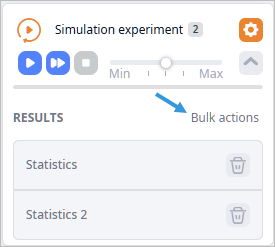
-
Select the checkboxes of the required results.
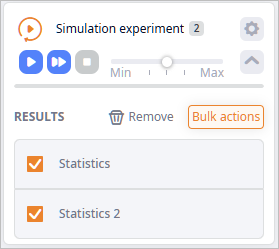
- Click Compare above the list of results. The Results Comparison dialog box will open.
If the data in the compared results is expressed in different units (e.g. currency, weight unit, etc. differ) the data will be automatically standardized (converted to a certain unit) for easier comparison and interpretation.
The units, in which the data is compared, are shown (and defined) in the DATA STANDARDIZATION section.
The default standardization settings can be changed.
Standardization is not possible in the following cases:
- A conversion rule is missing that would allow direct or indirect conversion to the specified unit.
- A statistic metric (defined in the KPI metric section) does not collect data per product (the option is disabled or missing as in e.g. Peak Capacity). In this case the N/A value will be shown in the comparison table cell.
To standardize the compared data
- Open the Results Comparison dialog box.
-
Define the standardization parameters in the DATA STANDARDIZATION
section by selecting the required units, to which the compared data from all the selected results must be converted.
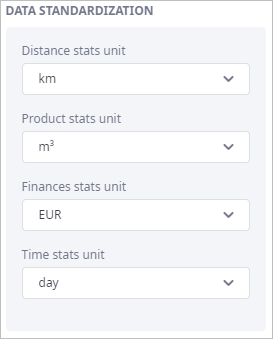
The exported file will contain only the data available in the comparison table in the way you have set it up:
- The data hidden because of the applied filter will not be exported.
- The metrics that are not added to the comparison table will not be exported.
- The N/A values will be exported as empty cells.
To export the compared data
- Open the Results Comparison dialog box.
- Select the results to compare from the Results drop-down list.
- Select the metrics from the KPI metrics that must be added to the comparison table.
- If required, set up the standardization parameters.
- If required, filter the compared data via the filter fields below the column names of the comparison table.
- Click Export to Excel to export the compared data in the current state.
The dialog box comprises:
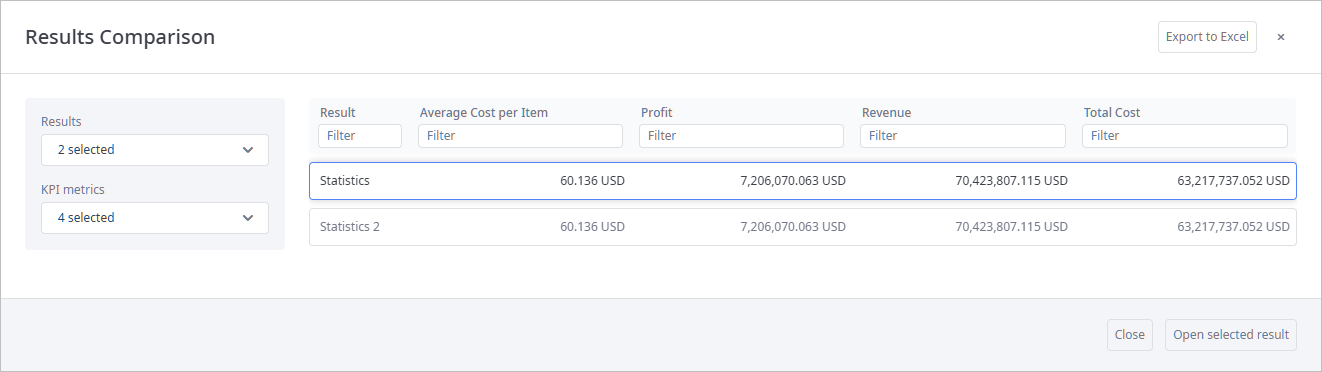
-
Header controls:
-
Export to Excel — exports results from the comparison table to an MS Excel file.
The set of results and KPI metrics the comparison table contains depends on the defined parameters in the left sidebar. -
 — closes the Results Comparison dialog box (you can open it later).
-
Export to Excel — exports results from the comparison table to an MS Excel file.
-
Left sidebar:
-
Results — the drop-down list with all the available results.
Select / deselect the checkboxes of the required results to add / remove them to / from the comparison table on the right.
Each list item comprises the result name (Result or Statistics depending on the experiment type) and its ordinal number.
-
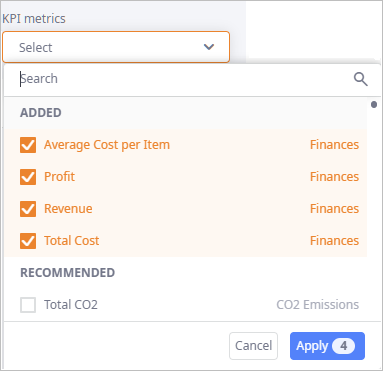
KPI metrics — the list of available metrics that can be added to the comparison table.
Depending on the experiment type the available statistics can be grouped into the following groups:
- ADDED — [Not available in the GFA experiments] the KPI metrics that are added to the comparison table.
- RECOMMENDED — [available in the Simulation experiment only] the most frequently used metrics.
-
OTHER — [Not available in the GFA experiments] the rest of the metrics available for this experiment type.
The list of available KPI metrics depends on the experiment type.
-
DATA STANDARDIZATION — the list of statistics, in which data is compared.
The specified measurement and currency units affect data of all the selected results.
If the data of the selected results is expressed in different units, standardization will be applied to have the values expressed in the same units.
- Finances stats unit — the monetary unit, in which the compared data is expressed.
- Product stats unit — the product measurement unit, in which the compared data is expressed.
- Time stats unit — the time measurement unit, in which the compared data is expressed.
- Distance stats unit — the distance measurement unit, in which the compared data is expressed.
-
Results — the drop-down list with all the available results.
Select / deselect the checkboxes of the required results to add / remove them to / from the comparison table on the right.
-
Body:
-
Comparison table — contains records (one per result item) with all the results selected from the
Results drop-down list:
- The number of table columns corresponds to the number of selected (ADDED) metrics in the KPI metrics drop-down list.
-
Comparison table — contains records (one per result item) with all the results selected from the
Results drop-down list:
-
Footer contains the following buttons:
- Close — closes the Results Comparison dialog box.
-
Convert to a new scenario — [not available in the Simulation experiment] converts the selected record of the
comparison table to a new scenario by:
- Opening the Convert Result dialog box in case of the Greenfield analysis experiments.
- Instantly converting the result to a new SIM scenario in case of the Last mile optimization experiment.
- Open selected result — closes the Results Comparison dialog box, triggers the map to display the supply chain from the selected result.
The dialog box may be empty if no result is added to the comparison. This is possible if you deselect all results from the Results drop-down list.
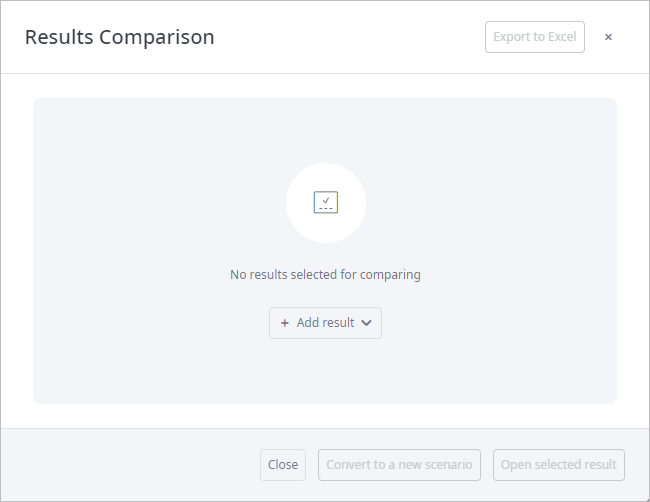
To add results to the empty Results Comparison dialog box
- In the empty Results Comparison dialog box click the Add result drop-down list.
- Select the checkbox next to the required results.
- Click Apply. The dialog box will now contain all the parameters and the comparison table.
-
How can we improve this article?
-