

This article describes icon editing for specific objects within a scenario. Global icon editing for all scenarios of this project is also possible.
A supply chain objects of a scenario may require different icons for easier distinction on the map.The default icons representing types of supply chain objects in all scenarios of a project:
 |
Customer. Custom icon is defined in the Customers table. |
 |
Distribution center. Custom icon is defined in the Distribution Centerstable. |
 |
Factory. Custom icon is defined in the Factories table. |
 |
Supplier. Custom icon is defined in the Suppliers table. |
To define a new icon for an object
-
Open the table of the required object type:
- Customers table.
- Distribution Centerstable.
- Factories table.
- Suppliers table.
-
Scroll to the Icon column and double-click the icon of the required object.
The Define a new icon dialog box will open.
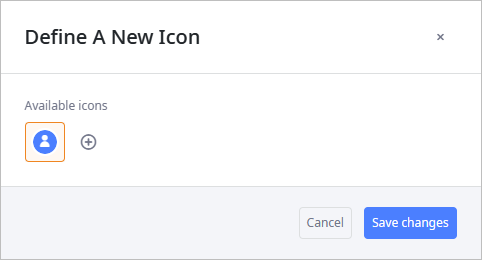
- Select the desired icon, then click Save changed. This specific object will now have the new icon.
To add a new icon
- Open the Define New Icon dialog box.
-
Click
 in the tile of the required object type.
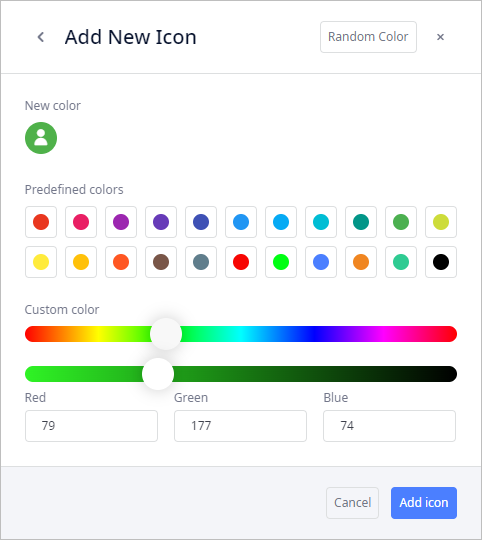
The Add New Icon dialog box will open.
in the tile of the required object type.
The Add New Icon dialog box will open.
You can also open the Add New Icon dialog box by clicking
 Preferences in the anyLogistix toolbar, selecting
 Edit Icons, and then clicking
.
This way you can add a new icon for all scenarios of this project, as well as set it as the
default icon for the corresponding object type.
Edit Icons, and then clicking
.
This way you can add a new icon for all scenarios of this project, as well as set it as the
default icon for the corresponding object type.
-
Now define the new color by doing either of the following:
- Pick a color from the Predefined colors.
- Set Custom color by dragging the sliders.
- Specify the RGB values of the required color.
- Click the Random color button in the header of the dialog box to select a random color.
-
When done, click the Add icon button.
The dialog box will close, the new icon with the selected color will be added to the Available icons section of the Define A New Icon dialog box. You can now set it either as a default icon for this object type or as a custom icon for a specific object of this type. - Click Save changes to define the new icon for this object.
-
How can we improve this article?
-